How to connect to the Internet
Once you have ordered an Internet plan, you can connect your WiFi Modem to the the NET360 NTD.
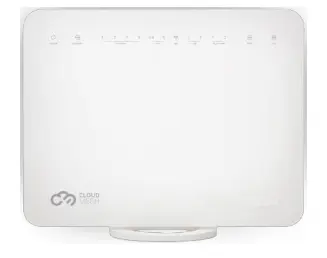
Locate your WiFi Modem
Your WiFi modem is how you will be able to connect your devices to the Internet.
If you have purchased a WiFi modem from us, then it should resemble a device similar to the one on the left.
If you have brought your own WiFi modem, then please have it handy for the next steps.
Connecting your WiFi Modem
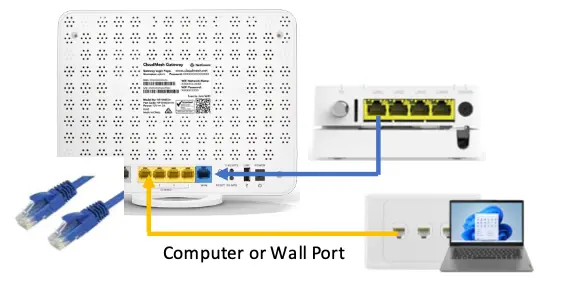
The back of the WiFi modem will have several ports. The description/name of each port may vary from product to product, but the function of each fall into two categories.
Function | Purpose | Common Names |
Internet | Connect to the "LAN1" port on the NET360 NTD | WAN Internet 🌐 (Globe Symbol) |
LAN | Connect your personal devices | LAN Ethernet (Each port will be numbered sequentially) |
Other ports that may exist:
- xDSL - This is for legacy copper network connections. NET360 does not use this type of connection
- Telephone/Phone - This is to allow connection of legacy phones
Test your service
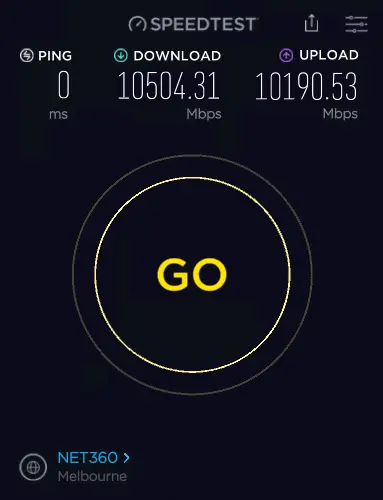
Once you have connected, please test your Internet service to ensure the service is running. Feel free to conduct a speed test via https://speedtest.net360.cloud - Your speeds should reflect the plan you have ordered
If your internet is not functioning please contact Net360 on 1300 NET360 or via the following link at https://net360.com.au/helpdesk
Frequently Asked Questions
If you have purchased a WiFi Modem from us, this is typically located on the back of the device. It may also be located on the bottom of the device.
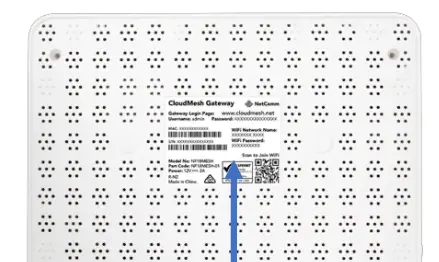
If you have changed the password or the password on written on the unit does not work, then you may need to perform a factory reset of the device in order to reset the password back to what is written on the unit.
We do not store/keep the WiFi passwords of your device nor are we able to recover or retrieve them if lost. Only a factory reset will get any of the passwords configured on the unit back to the default written on the device.
The best performance will always be achieved by plugging directly into a physical data point, this will enable you to get the full benefit of your internet speeds.
Connecting to wireless will depend on your laptop, phone or devices signal strength as well as the materials used in your home. This is not reflective of your internet service - this is reflective of your internal wireless signal.
If you are in a larger home or have issues getting signal throughout your entire dwelling, extenders can be purchased to extend the coverage
No. The NET360 network does not require any special usernames, passwords, or login details.
Most WiFi modems are plug-and-play and should work as soon as they are connected.
If your WiFi modem has previously been used with another internet provider, you may need to update or reset its internet settings before it will work on the NET360 network.
Your WiFi modem’s Internet/WAN connection should be configured as:
WAN type: Ethernet WAN
Connection type: DHCP / IPoE / Dynamic IP
These terms generally mean the same thing, depending on the modem brand.
You can reach our customer support team by logging a help desk ticket at https://www.net360.com.au/helpdesk